
In the evolving landscape of software development, Unified Modeling Language (UML) remains a vital tool for visualizing, specifying, and documenting complex systems. However, traditional modeling methods are often labor-intensive, frequently resulting in a disconnect between architectural models and final technical documentation. To bridge this gap, a modern, AI-enhanced workflow has emerged, centered on the powerful integration of Visual Paradigm’s desktop modeling, AI-driven generation, and the OpenDocs knowledge management platform. This guide explores a modern, AI-enhanced workflow for software system development using UML. It focuses on the powerful trio of Visual Paradigm's desktop modeling, integrated AI generation, and OpenDocs knowledge management, illustrating the journey from concept to living documentation with practical PlantUML examples.
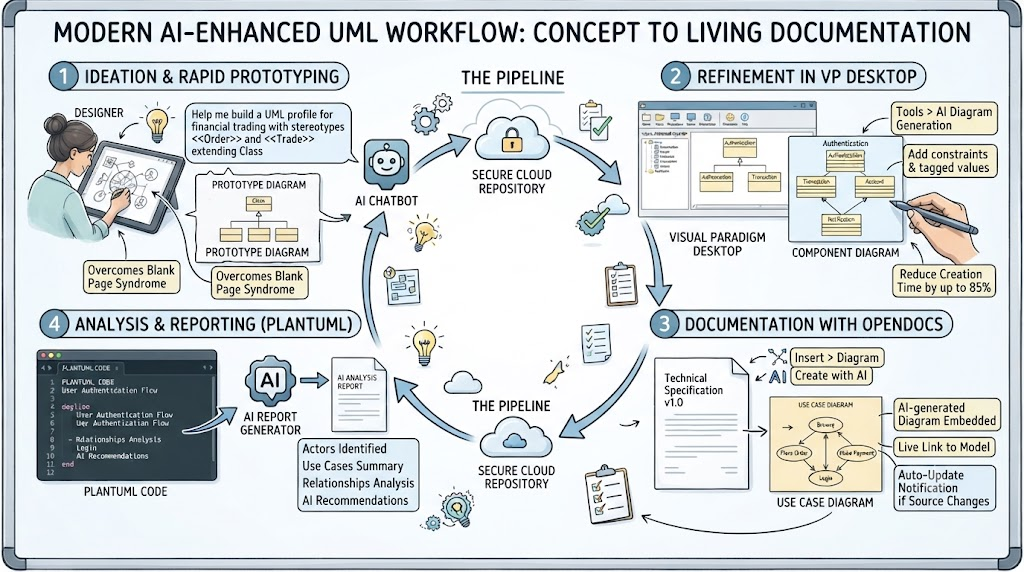
UML remains a cornerstone for visualizing, specifying, and documenting software systems. However, traditional modeling can be time-consuming and often creates a disconnect between the model and the final documentation. Visual Paradigm addresses this by creating a cohesive ecosystem where AI accelerates modeling, and a central "Pipeline" ensures seamless traceability to living documentation .
This ecosystem revolves around four core pillars:
Understanding the role of each tool is key to leveraging the full power of this ecosystem.
Start by brainstorming with the AI Visual Modeling Chatbot. Describe your system concept in natural language. For example, you can ask: "Help me build a UML profile for financial trading. Include stereotypes for 'Order' and 'Trade' that extend the Class metaclass." . The AI will generate a basic diagram almost instantly, which you can then refine.
Once you have a prototype, you can move to the Visual Paradigm Desktop for professional refinement.
Tools > AI Diagram Generation .<<include>> and <<extend>> connectors in use case diagrams ). You can then manually adjust the model, add constraints, or define tagged values .This process can reduce initial diagram creation time by up to 85% compared to traditional manual methods .
OpenDocs is where your model becomes a permanent part of your project's knowledge base.
Insert > Diagram > [Diagram Type] and then click the Create with AI button to describe the diagram you need .Export > Send to OpenDocs Pipeline . In OpenDocs, you can then insert this diagram by clicking Insert > Pipeline and selecting the artifact from the list .This creates a live link. When the source model changes, OpenDocs will prompt you to update the diagram in your document, ensuring your documentation is always current .
Visual Paradigm leverages PlantUML as a text-based bridge between diagrams and analysis.
include/extend), and can even offer AI-powered insights and recommendations for improving the model .Here are examples of how PlantUML code is used within this ecosystem, often as the basis for AI analysis or as a portable format for version control.
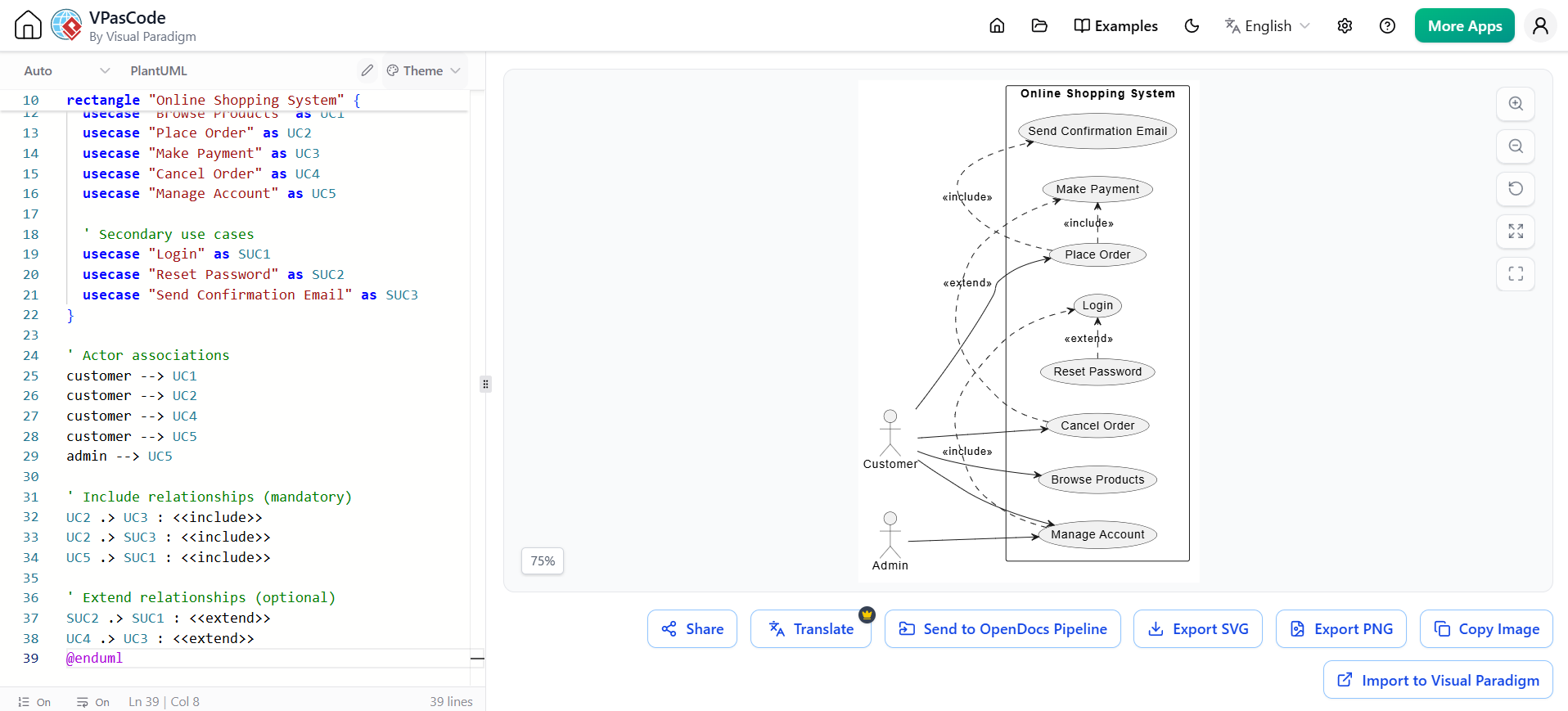
This diagram can be used as input for the AI Use Case Analyzer to generate reports and sub-diagrams .
@startuml
' Use Case Diagram for Online Shopping System
left to right direction

' Define actors
actor "Customer" as customer
actor "Admin" as admin

' Define system boundary
rectangle "Online Shopping System" {
  ' Use cases
  usecase "Browse Products" as UC1
  usecase "Place Order" as UC2
  usecase "Make Payment" as UC3
  usecase "Cancel Order" as UC4
  usecase "Manage Account" as UC5

  ' Secondary use cases
  usecase "Login" as SUC1
  usecase "Reset Password" as SUC2
  usecase "Send Confirmation Email" as SUC3
}

' Actor associations
customer --> UC1
customer --> UC2
customer --> UC4
customer --> UC5
admin --> UC5

' Include relationships (mandatory)
UC2 .> UC3 : <<include>>
UC2 .> SUC3 : <<include>>
UC5 .> SUC1 : <<include>>

' Extend relationships (optional)
SUC2 .> SUC1 : <<extend>>
UC4 .> UC3 : <<extend>>
@enduml
How AI Analyzes This: The AI tool can parse this code to generate a table summarizing each use case, its actors, and its relationships (include/extend). It can also generate a focused sub-diagram centered on a specific use case like "Place Order" for more detailed analysis .
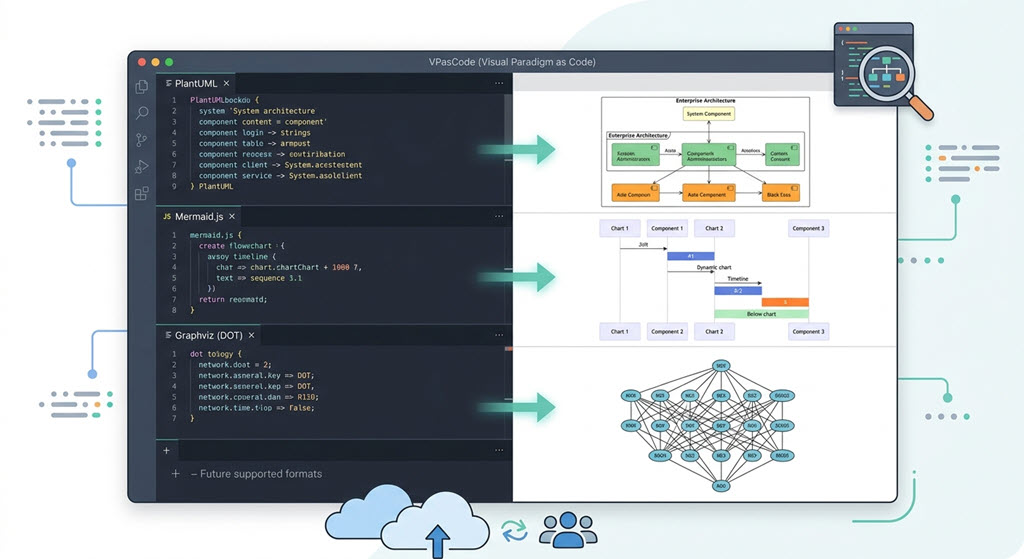
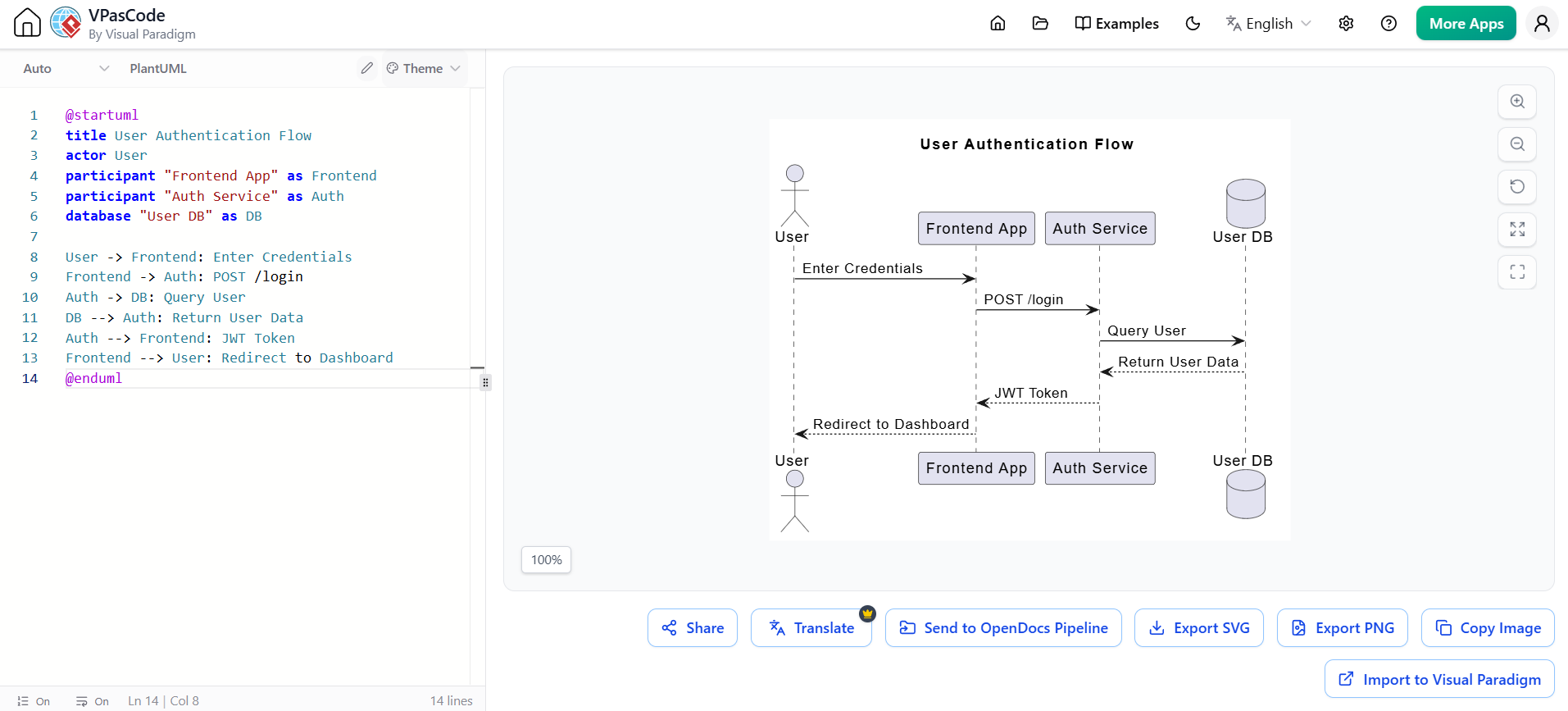
This demonstrates how developers can use VPasCode to generate diagrams directly from text .
@startuml
title User Authentication Flow
actor User
participant "Frontend App" as Frontend
participant "Auth Service" as Auth
database "User DB" as DB

User -> Frontend: Enter Credentials
Frontend -> Auth: POST /login
Auth -> DB: Query User
DB --> Auth: Return User Data
Auth --> Frontend: JWT Token
Frontend --> User: Redirect to Dashboard
@enduml
Once rendered in VPasCode, the developer can click "Send to OpenDocs Pipeline" to immediately embed this live diagram into the relevant technical specification document .
This example showcases how a data model can be defined and maintained as code .
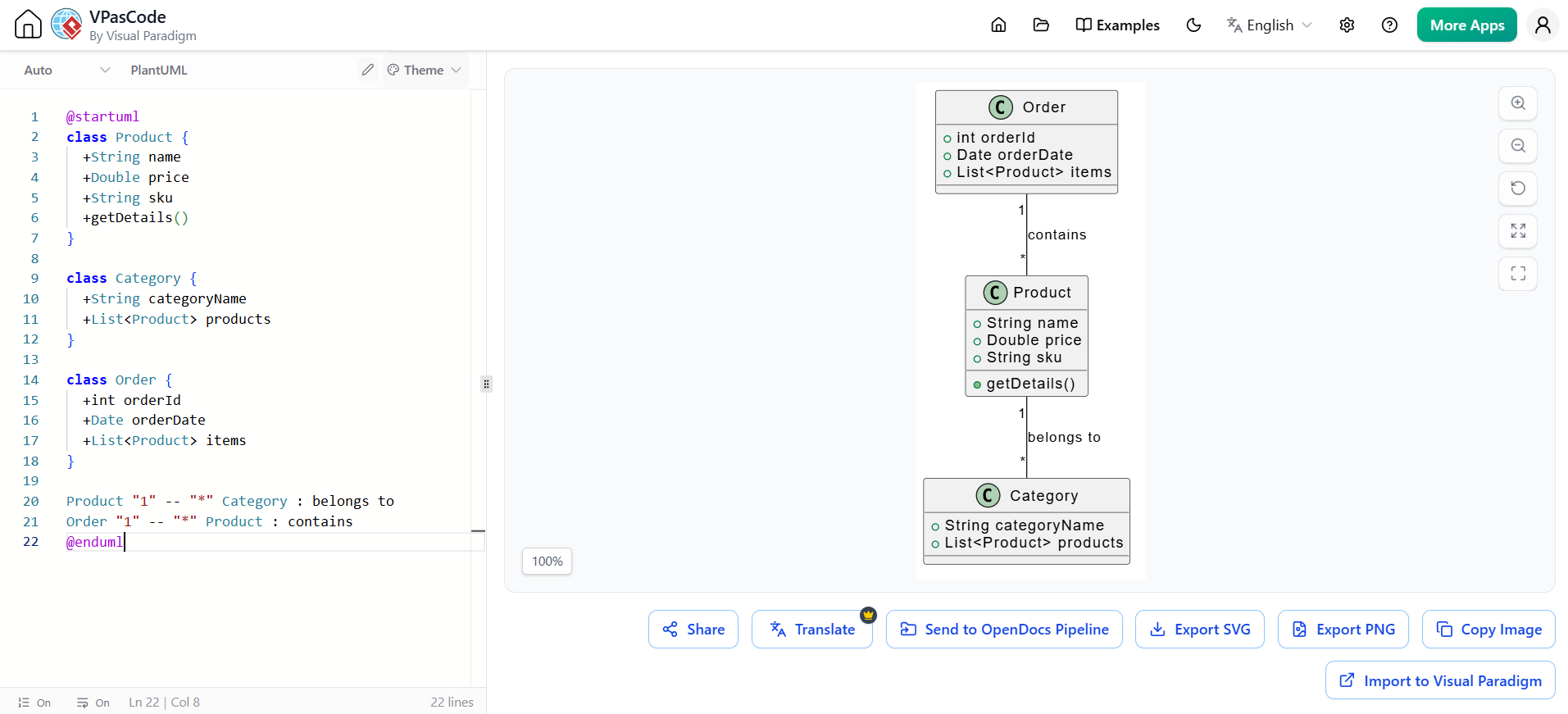
@startuml
class Product {
  +String name
  +Double price
  +String sku
  +getDetails()
}

class Category {
  +String categoryName
  +List<Product> products
}

class Order {
  +int orderId
  +Date orderDate
  +List<Product> items
}

Product "1" -- "*" Category : belongs to
Order "1" -- "*" Product : contains
@enduml
Benefits: This PlantUML code is portable, version-controlled, and can be seamlessly integrated into OpenDocs via the Pipeline, ensuring the class model is always part of the project's documentation.
Looking for a powerful, free diagram-as-code tool? Effortlessly render PlantUML, Mermaid, Graphviz, and 20+ programming languages in real time—powered by instant AI error fixing and automatic format detection.
The integration of Visual Paradigm, AI, and OpenDocs represents a significant evolution in UML modeling. It moves the practice from a siloed, manual task to a collaborative, intelligent, and traceable workflow. By leveraging AI to overcome initial design hurdles and using the Pipeline to maintain a "single source of truth" between the model and its documentation, teams can create more accurate, up-to-date, and accessible technical knowledge.
This modern approach empowers software engineers to focus on solving complex design problems rather than getting bogged down in repetitive tasks, ultimately leading to faster delivery and higher-quality software systems .

