
Business Process Model and Notation (BPMN) is the global standard for visualizing business processes. While events, gateways, and flows provide the structure of a process, Activities are the engine—they represent the actual work being done. Whether it’s a human approving a request, a system updating a database, or a complex series of steps hidden within a sub-process, activities define the "what" and "how" of your workflow.
Understanding the distinction between atomic tasks and compound sub-processes, and knowing when to use specialized task types (like User, Service, or Manual tasks), is critical for creating clear, actionable, and maintainable process models. This guide breaks down the core components of BPMN Activities, providing you with the knowledge to model workflows that are both precise and easy to understand for stakeholders and technical teams alike.
In BPMN, Activities are represented by rounded rectangles and signify the actual work performed within an organization. They are the essential building blocks—or steps—within a business process.
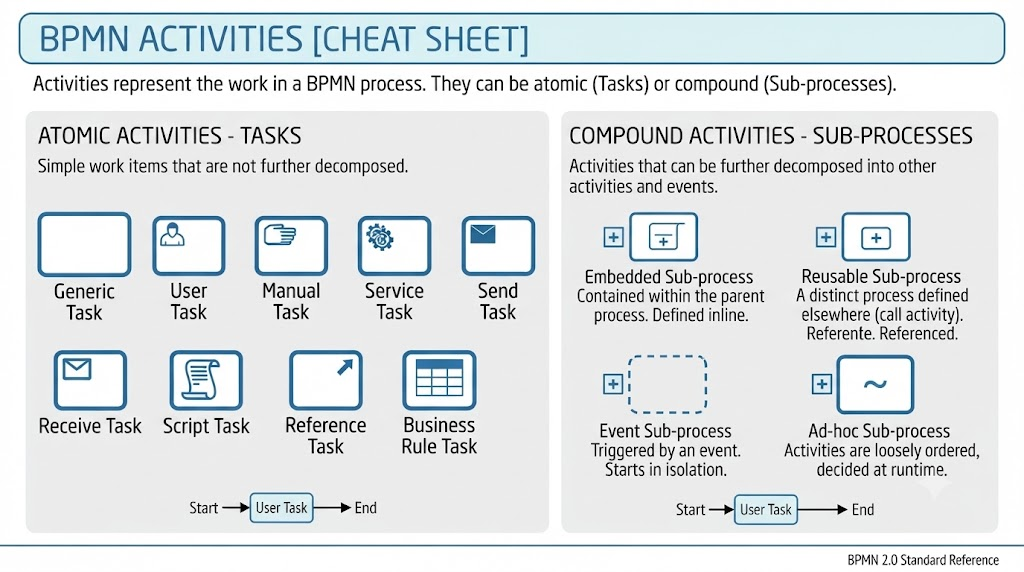
Activities are categorized into two main types:
Atomic (Tasks): Simple activities that are not broken down further within the current model.
Compound (Sub-processes): Complex activities that contain their own internal flow of smaller activities.
A Task is a single, undivided step in a process. When you do not need to show more internal detail for a specific action, you use a task.
BPMN defines several specialized task icons to indicate how the work is performed. Using the correct icon reduces ambiguity and helps developers and business users understand the nature of the work.
| Task Type | Icon/Indicator | Description & Examples |
|---|---|---|
| Abstract Task | Plain rectangle | A generic task when no specific type is required. Example: "Review document." |
| User Task | Person icon | Performed by a human with software assistance. Example: "Approve expense report." |
| Manual Task | Folder/Hand icon | Performed by a human without software assistance. Example: "Physically sign a paper contract." |
| Service Task | Gear icon | Performed by an automated system or web service. Example: "Update database record." |
| Send Task | Envelope icon (pointing out) | A task that sends a message to an external participant. Example: "Send invoice via email." |
| Receive Task | Envelope icon (pointing in) | A task that waits to receive a message. Example: "Wait for payment confirmation." |
| Script Task | Scroll icon | Executed by a business process engine using a script (e.g., JavaScript). Example: "Calculate total tax." |
| Reference Task | Arrow icon | Points to a task defined elsewhere in the model. |
A Sub-process is a "container" activity that holds a set of smaller, nested activities. It is used to simplify complex process maps by hiding detail inside a sub-diagram. This allows high-level diagrams to remain readable while still providing access to granular details when needed.
Description: Part of the parent process and exists only within that specific diagram.
Constraint: Cannot contain its own pools or lanes.
Use Case: Ideal for grouping related tasks that are unique to a specific workflow and do not need to be reused elsewhere.
Example: "Onboarding" steps that are unique to a specific hiring flow within a larger recruitment process.
Description: A standalone process that can be called upon or reused in many different diagrams.
Independence: It does not depend on the parent process; it is its own defined process.
Use Case: Best for standardized procedures that occur across multiple departments or processes.
Example: A standard "Process Credit Card Payment" flow used by Sales, Support, and Billing departments.
To ensure your BPMN diagrams are effective, follow these best practices:
Choose the Right Granularity: Use Tasks for simple, atomic steps. Only promote a step to a Sub-process if it becomes too complex to display clearly or if it needs to be reused elsewhere.
Select the Correct Task Type: Use the specific task icons (User, Service, etc.) to clearly communicate who or what is performing the work. This reduces ambiguity for developers and stakeholders.
Keep Embedded Sub-processes Focused: Since an embedded sub-process cannot have its own pools or lanes, ensure it only contains the specific tasks required to complete that segment of the workflow. Avoid mixing unrelated activities.
Naming Convention: Always use a "Verb + Noun" format for activity labels (e.g., "Submit Invoice" instead of just "Invoice"). This makes the action clear and consistent.
Simplification: If your diagram looks cluttered, look for groups of tasks that can be collapsed into a single Sub-process to improve readability. A good rule of thumb is if a section has more than 5–7 tasks, consider sub-processing it.
Reusability: If you find yourself drawing the same group of five tasks in three different diagrams, convert that group into a Reusable sub-process. This saves time, ensures consistency, and makes updates easier (change it in one place, and it updates everywhere).
Mastering BPMN Activities is fundamental to creating process models that are not only visually appealing but also functionally accurate. By distinguishing between atomic tasks and compound sub-processes, and by leveraging specialized task types like User, Service, and Manual tasks, you can create diagrams that speak clearly to both business stakeholders and technical implementers.
Remember, the goal of BPMN is communication. Use tasks to define clear, actionable steps, and use sub-processes to manage complexity and promote reusability. With these guidelines, you’ll be well-equipped to model efficient, transparent, and scalable business processes.

